
To use AI at work, start with one real task, pick the tool that fits it and check everything it produces. You don’t need special software. The AI tools for work in this guide are ones most professionals already have: a general assistant such as ChatGPT, Claude, Gemini or Copilot, plus the AI inside Outlook, Excel and Canva. Together they cover writing, summarising, research, spreadsheets and slides.
In our last post, we looked at why AI skills now matter for professionals in Kenya and which five to build before 2027. This guide picks up where that one left off, with the practical side: how to use AI on the work already on your desk.
Having AI is not the same as getting results from it. In a field experiment cited in the World Bank’s October 2026 Africa Economic Update, Building AI Readiness, 640 Kenyan entrepreneurs received a GPT-4 business assistant on WhatsApp, and on average their revenue and profit didn’t change.
Those who were already doing well may have gained more than 15%, while those who were struggling did nearly 10% worse. The difference was linked to which of the AI’s suggestions they chose to act on.
Closing the gap between having AI and getting results from it starts with the problem you’re trying to solve. “Once you are able to figure out exactly what problems you’re trying to solve, then the tools are going to come naturally,” says Zachary Kimotho, an AI technical mentor at Moringa School.

When he trains working professionals, he challenges them to start there: define the problem, think through how to solve it, and let that decide which tool to use. You can watch the full interview with Zachary on YouTube to hear more of his approach.
This guide follows the same approach. Each of the five tasks below starts with a familiar problem at work, then gives you the tools that handle it, the steps to follow, a prompt to copy and adapt, and what to watch for.
Your AI toolkit: five everyday tasks, step by step
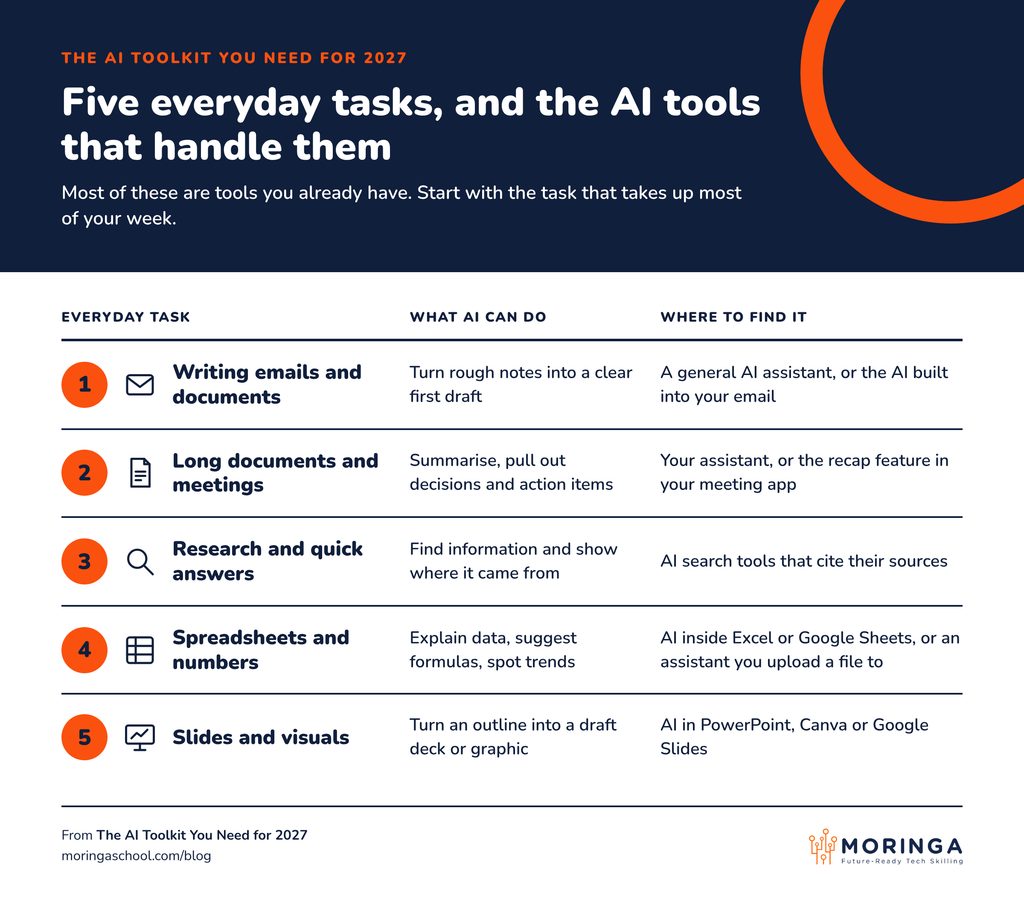
The table gives you these AI tools for work at a glance. Get set up first, then work through the tasks in order or jump to the one that takes up most of your week.
Before you start
You need three things.
- An AI assistant. The free version of ChatGPT, Claude, Gemini or Copilot is enough for everything here. If your employer provides one, use that, because approved tools usually come with better data protection.
- A real task from this week. Made-up examples only teach you the theory. Your own work shows you what AI can do for you, and where it falls short.
- About 20 minutes per task the first time. It gets much quicker after a few tries.
Words in [square brackets] in the prompts below are placeholders for your own details.
1. How to write emails and reports with AI
To write emails and reports with AI, give the assistant your facts, your reader and the format you want, ask for two versions, then edit the better one and check every name, figure and date before you send it.
Start with writing, because it’s where many professionals feel the hours go: the follow-up after a client call, the monthly update, the careful reply to a complaint. A general AI assistant works well here. If your organisation uses Outlook or Gmail, a drafting feature may already be built in.
The time saved can be large. In a randomised experiment on professional writing tasks, cited in the World Bank report, people with access to ChatGPT took 40% less time and their work was rated 18% higher in quality.
Steps
- Write down the facts first: what was agreed, what you need, by when. Rough bullet points are fine and spelling doesn’t matter. The AI can only use what you give it.
- Describe the reader: their role, your relationship, and how they like to be written to.
- Say what you want back, including the type of message, rough length and tone. Ask for two versions so you can compare.
- Choose the better version and edit it. Check every name, figure and date against your notes, and rewrite the opening and closing lines in your own words.
- Read it once as the recipient would before you send it.
Prompt to try
I need to send a follow-up email after a client call today. My notes: [paste your notes]. The client is [role], who prefers short, direct emails. Write an email under 150 words that confirms what we agreed, lists what we need from them and asks for it by [date]. Friendly but professional. Give me two versions, one more formal and one warmer.
Watch out for
AI fills gaps with details that sound right. If the draft promises something you didn’t agree to, such as a delivery date, take it out.
Take extra care with Kiswahili. AI tools learn from far less Kiswahili text than English: the World Bank counts 710 Swahili data sets on Hugging Face, one of the largest open AI libraries, against 88,844 in English. Ask a fluent colleague to check anything important before it goes out.
2. How to summarise long documents and meetings with AI
To summarise a long document or meeting with AI, ask a specific question rather than for “a summary”, ask for page or section references, and read the parts it points to before you act on them.
Next comes the reading pile: long policies, reports, contracts and email threads, plus meetings you need a record of. AI can summarise all of them. Any general assistant that accepts file uploads can handle a single document.
Google’s NotebookLM is built for questions across a set of documents, such as a folder of policies or last year’s board papers, and answers from the sources you add. For meetings, Microsoft Teams, Google Meet and Zoom have recap or note-taking features, if your organisation has switched them on.
Steps for a document
- Check that the document can go into the tool. Anything confidential should only go into a tool your organisation has approved.
- Upload it and ask a specific question. Say who you are and what you need to know, rather than asking for “a summary”.
- Ask for a page or section reference for each point.
- Read the sections it points to yourself. Summaries sometimes leave out a condition or an exception, and that is often the part that matters.
Steps for a meeting
- At the start, tell everyone the AI note-taker is on and check they are comfortable with it. Some conversations shouldn’t be recorded.
- Afterwards, ask the recap tool for decisions, action items, owners and deadlines.
- Confirm each owner with the person named before you send the notes round. AI often mixes up who said what.
Prompts to try
I’m the operations lead. Read the attached policy and tell me: 1) what changes for line managers, 2) any new deadlines or approvals, 3) which sections I should read in full. Give a page or section number for each point, and keep what the document says separate from your own interpretation.
From this meeting transcript, list the decisions made, each action item with its owner and deadline, and any open questions. Keep confirmed decisions separate from suggestions that still need approval. If an owner or deadline wasn’t stated, write “not stated” rather than guessing.
Watch out for
A summary reads as complete even when it isn’t. If a decision depends on the document, read the relevant section in full.
3. How to research with AI and check what it finds
To research with AI, use a tool that cites its sources, ask for recent sources only, and open every link behind a claim you plan to repeat.
Research is where AI is easiest to trust and most important to check. It can help with background on a client’s industry, comparing suppliers, or getting your head round a new regulation. Choose a tool that shows its sources: Perplexity, or the search modes in ChatGPT, Gemini, Claude and Copilot.
Steps
- Ask a clear question with context: the country, the time period and what you need the answer for.
- Ask for a source link for each point, and tell it to say so if it can’t find recent ones.
- Open the sources behind anything you plan to use. Make sure the page says what the AI claims; sometimes it attaches a real link to a claim the page never makes.
- Check when each source was published. Prices, rules and rankings change, and an answer built on a 2023 article can sound certain and still be out of date.
- For legal or regulatory questions, use AI to find out which law or guideline applies, then read it on the official site, such as Kenya Law or the Office of the Data Protection Commissioner.
- Before you base a decision on the answer, ask what someone who disagrees would say.
Prompt to try
I’m preparing for a meeting with a logistics company in Mombasa. Give me a short overview of the main challenges facing freight businesses in Kenya this year, with a source link for each point. Only use sources from the last 12 months, and tell me if you can’t find recent ones.
Watch out for
Links make an answer look checked. If you haven’t opened the source, don’t repeat the claim to a client.
4. How to use AI with spreadsheets and numbers
To use AI with spreadsheets, remove personal data, explain what your columns mean, ask for the formula with a short explanation, and check one result against a figure you already know.
AI makes a patient helper with spreadsheets: the tracker you only half understand, a budget variance check, or survey results you need to boil down to a few findings. If your organisation has Copilot in Excel or Gemini in Google Sheets, start there. Otherwise, most general assistants can read an uploaded spreadsheet.
If numbers are a big part of your job, our piece on what modern data analysts actually do shows where these skills can lead.
Steps
- Remove personal data before uploading: names, ID numbers, phone numbers, salaries. Under Kenya’s Data Protection Act, a careless upload is a real liability. Codes in place of names usually work just as well for the analysis.
- Tidy the sheet: look for blank cells, duplicate rows and broken formulas, because AI will treat them as real data. Then explain the columns in a sentence or two, including abbreviations and what blank cells mean.
- Ask your question, and ask for the formula plus a short explanation of how it works.
- Check one result against a figure you already know, such as last month’s total. If it doesn’t match, stop and find out why before going further.
- Once the numbers check out, ask for a chart or a three-line summary for your report.
Prompt to try
This sheet tracks monthly sales by branch. Column A is the branch, B is the month, C (“Q_Amt”) is sales in Ksh, and a blank in D means not yet invoiced. Which three branches grew fastest between January and June? Show me the Excel formula you used and explain it in one or two sentences. Don’t suggest a cause where the data only shows a pattern.
Watch out for
AI can misread a column and still produce a neat, convincing table. Step 4 is the one not to skip.
5. How to create slides and visuals with AI
To create slides with AI, get an outline first, fix the story there, build the deck in your own template, and check every number before you present.
Last comes the task many people leave until the night before: slides for a management update, a team briefing or a one-page graphic. Copilot in PowerPoint, Gemini in Google Slides and Canva’s AI design features can all produce a first draft, and Gamma builds a whole deck from a short brief. If you work in marketing, our practical guide to AI in digital marketing has more examples for campaign content.
Steps
- Ask a general assistant for an outline first, with one main point per slide. Fixing the story in a list is much quicker than fixing finished slides.
- Edit the outline until the argument holds: cut, merge or reorder slides.
- Build the deck. Either let your slide tool generate a draft from the outline, or paste the outline into your organisation’s own template, which keeps it looking like your team’s work.
- Check every number on every chart against the source.
- Replace AI-generated images of people, products or places with real photos. AI images are fine for abstract backgrounds.
- Rehearse once. If there’s a point you can’t explain in your own words, rewrite or remove it.
Prompt to try
Turn these notes into a six-slide outline for a 15-minute update to senior management: [paste notes]. Give each slide one main point written as a full sentence, with up to three supporting points. The last slide should list the decisions we need from them. Don’t add any figures or achievements that aren’t in my notes.
Watch out for
A slide is where an AI mistake is most visible, usually in front of the people you most want to impress. Steps 4 and 6 are there to catch them.
Want all five prompts and the five-day plan in one place? Download the free PDF version of this toolkit, with a tracker you can print and fill in.
[DOWNLOAD FORM: same form as above · button: Send me the toolkit]
What changes in 2027: AI that carries out tasks for you
Everything so far has used AI one task at a time, when you ask. The next stage, already under way in large companies, is AI agents: tools that work through a series of steps towards a goal, using the apps they are connected to.
Take a weekly performance report. With an assistant, you upload the figures and ask for a summary. With an agent, the tool could pull the figures from your sales system, compare them with last week’s, draft the report and send it to you for approval before it goes anywhere.
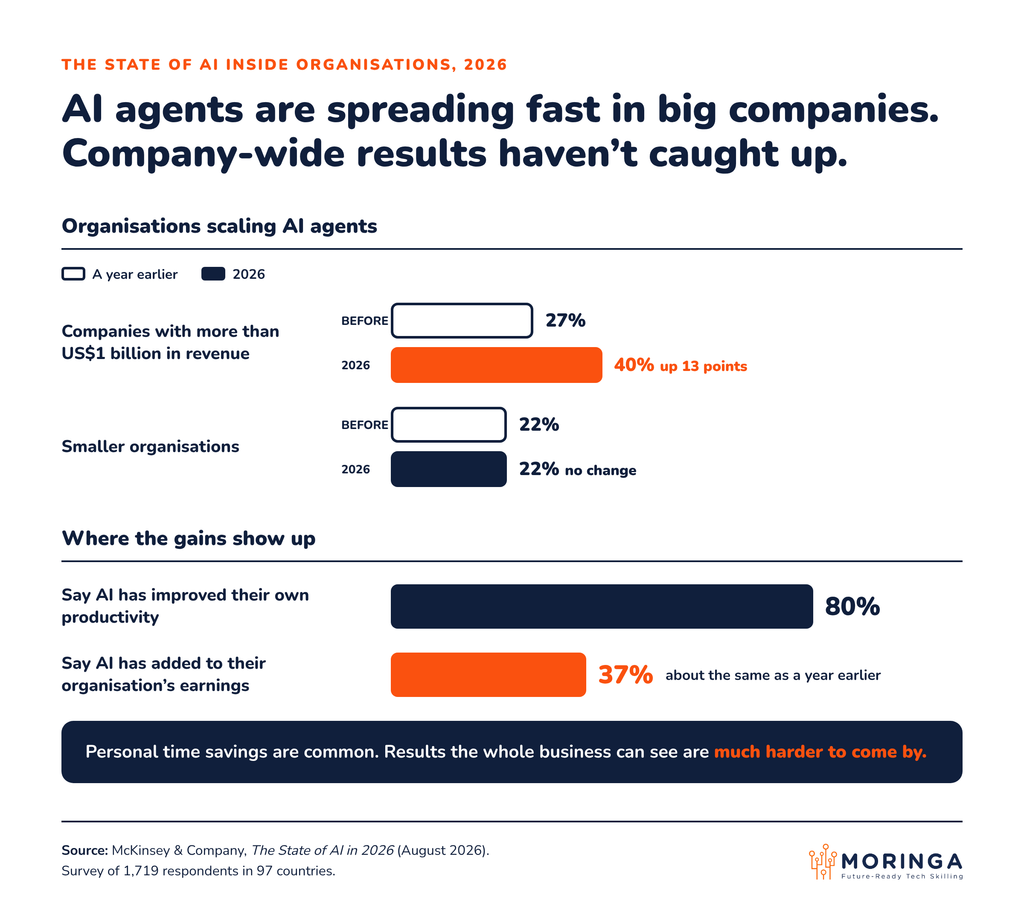
McKinsey’s State of AI in 2026 survey of 1,719 respondents in 97 countries shows how fast this is moving in big organisations. It also shows how far individual gains still are from company results.
Closer to home, the World Bank’s firm surveys found that among firms with at least 20 employees, an average of 44% in Kenya and Nigeria used AI, against 61% in the United States, mostly basic tools such as chatbots and generative AI. The five tasks in this guide are good preparation either way. An agent can only be set up for work someone can describe step by step, and its output still needs checking by a person who knows what good looks like.
Start a list of tasks in your week that repeat, follow the same steps each time, or involve copying information from one app to another. Those are the likeliest to be automated, and if you already handle them well, you’ll have a say in how it’s done.
Five habits for getting more from AI tools at work
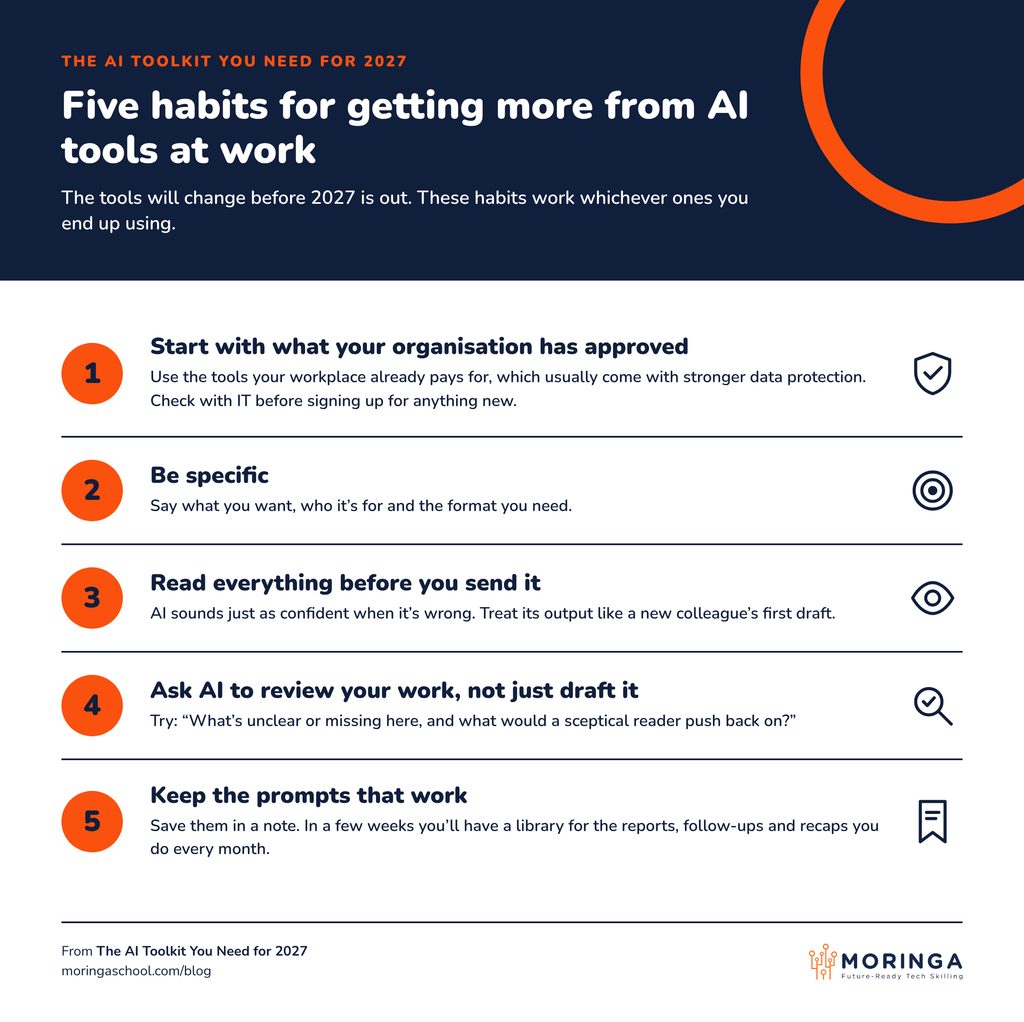
The tools will change before 2027 is out, and Zachary’s advice for keeping up is to stay curious: “If you’re not curious enough, you’re just going to have the same information you had a couple of years back.” The habits below apply whichever AI tools for work you end up using.
In 2027, judgement will matter more than access
The AI tools for work named in this guide will all look different by the end of 2027. What won’t change is the part of the work AI can’t do for you: deciding what a task needs, spotting what a draft got wrong, and putting your name to the result.
That’s where the next divide at work is forming. Most professionals already use AI in some form, so access no longer sets anyone apart. What will is whether others can rely on your AI-assisted work without checking it twice. Companies are finding the same thing at scale: time savings for individuals are common, while results the whole business can see are much harder to come by.
Judgement is also the hardest of these skills to build alone, because it’s difficult to spot the mistakes you don’t yet know to look for. Moringa’s Generative AI Essentials programme is designed for that stage: working professionals practising everyday tasks with an instructor who shows them what good looks like, and where their AI-assisted work falls short.
Ready to build these skills for 2027? Explore the Generative AI Essentials programme and join the 30th November intake.